#!/bin/bash
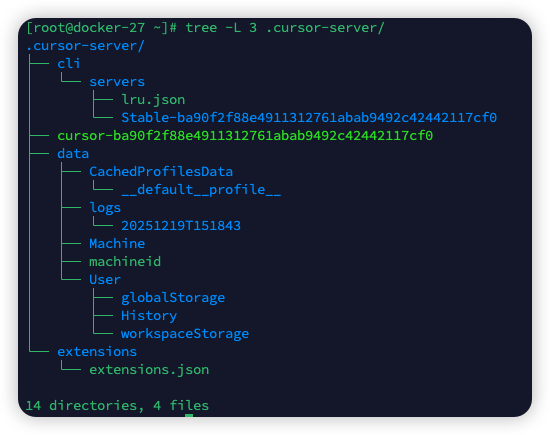
# =========================================================# Cursor Remote Server Update Script# Used to download Cursor server files locally and then upload them to a remote Linux server# =========================================================# ==================== Local Configuration ====================SCRIPT_DIR="$(cd"$( dirname "${BASH_SOURCE[0]}")"&> /dev/null &&pwd)"LOCAL_DOWNLOAD_DIR="$SCRIPT_DIR/cursor_downloads"# Local download directory# Remote server configurationREMOTE_PORT=22# SSH portREMOTE_USER="root"# Remote usernameREMOTE_HOST="mycloud.com"# Remote host# ==================== Target Architecture Configuration ====================# Local architecture - determines which version you want to download locally# Possible values: "x64" or "arm64"# - x64: For Intel-based Macs# - arm64: For Apple Silicon (M1/M2/M3) based MacsLOCAL_ARCH="arm64"# Remote architecture - determines which version you want to use on the remote server# Possible values: "x64" or "arm64"# - x64: For Intel/AMD servers (most common)# - arm64: For ARM-based servers (e.g., AWS Graviton)REMOTE_ARCH="x64"# Remote operating system - usually Linux# Possible values: "linux"# Note: Cursor server currently mainly supports LinuxREMOTE_OS="linux"# ==================== Script Functions ====================# Output colored messagesprint_message(){localcolor=$1localmessage=$2case$color in
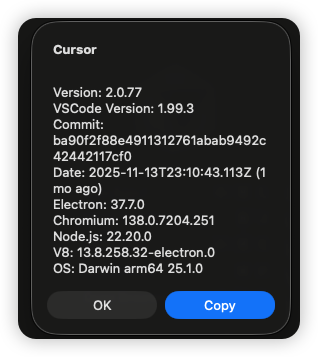
"green")echo -e "\033[0;32m$message\033[0m";;"red")echo -e "\033[0;31m$message\033[0m";;"yellow")echo -e "\033[0;33m$message\033[0m";;"blue")echo -e "\033[0;34m$message\033[0m";; *)echo"$message";;esac}# Check if a command existscheck_command(){if ! command -v $1&> /dev/null;then print_message "red""Error: Command '$1' not found, please install it first."exit1fi}# Get Cursor version informationget_cursor_version(){if ! command -v cursor &> /dev/null;then print_message "red""Error: 'cursor' command not found. Please ensure Cursor is installed."exit1fi print_message "blue""Fetching Cursor version information..."# Run cursor --version and capture the outputlocalversion_info=$(cursor --version)# Use regex to extract version, commit hash, and architectureCURSOR_VERSION=$(echo"$version_info"| sed -n '1p')CURSOR_COMMIT=$(echo"$version_info"| sed -n '2p')CURSOR_ARCH=$(echo"$version_info"| sed -n '3p') print_message "green""Retrieved Cursor information:" print_message "green"" Version: $CURSOR_VERSION" print_message "green"" Commit: $CURSOR_COMMIT" print_message "green"" Architecture: $CURSOR_ARCH"}# Download Cursor serverdownload_cursor_server(){ print_message "blue""Preparing to download Cursor server..."# Create download directory mkdir -p "$LOCAL_DOWNLOAD_DIR"# Build download URLDOWNLOAD_URL="https://cursor.blob.core.windows.net/remote-releases/${CURSOR_VERSION}-${CURSOR_COMMIT}/vscode-reh-${REMOTE_OS}-${REMOTE_ARCH}.tar.gz"# Set download filenameDOWNLOAD_FILENAME="cursor-server-${CURSOR_VERSION}-${CURSOR_COMMIT}-${REMOTE_OS}-${REMOTE_ARCH}.tar.gz"DOWNLOAD_PATH="$LOCAL_DOWNLOAD_DIR/$DOWNLOAD_FILENAME" print_message "yellow""Download URL: $DOWNLOAD_URL" print_message "yellow""Downloading to: $DOWNLOAD_PATH"# Download the fileif curl -L "$DOWNLOAD_URL" -o "$DOWNLOAD_PATH";then print_message "green""Cursor server downloaded successfully!"else print_message "red""Download failed!"exit1fi}# Upload and deploy Cursor server to remote hostdeploy_to_remote(){ print_message "blue""Preparing to upload to remote server..."# Build SSH command prefixSSH_CMD="ssh -p $REMOTE_PORT${REMOTE_USER}@${REMOTE_HOST}"SCP_CMD="scp -P $REMOTE_PORT"# Ensure remote directory exists print_message "yellow""Creating remote directory structure..."$SSH_CMD"mkdir -p ~/.cursor-server/cli/servers/Stable-${CURSOR_COMMIT}/server/"# Upload the file print_message "yellow""Uploading server files to remote host..."$SCP_CMD"$DOWNLOAD_PATH""${REMOTE_USER}@${REMOTE_HOST}:~/.cursor-server/cursor-server.tar.gz"if[$? -ne 0];then print_message "red""Upload failed!"exit1fi# Extract the file print_message "yellow""Extracting files on remote host..."$SSH_CMD"tar -xzf ~/.cursor-server/cursor-server.tar.gz -C ~/.cursor-server/cli/servers/Stable-${CURSOR_COMMIT}/server/ --strip-components=1"if[$? -ne 0];then print_message "red""Extraction failed!"exit1fi# Clean up temporary files print_message "yellow""Cleaning up remote temporary files..."$SSH_CMD"rm ~/.cursor-server/cursor-server.tar.gz" print_message "green""Deployment complete! Server files have been successfully installed on the remote host." print_message "green""Remote server path: ~/.cursor-server/cli/servers/Stable-${CURSOR_COMMIT}/server/"}# ==================== Main Program ====================# Check necessary commandscheck_command "curl"check_command "ssh"check_command "scp"# Get Cursor version informationget_cursor_version
# Download Cursor serverdownload_cursor_server
# Confirm uploadprint_message "blue""Preparing to upload to remote server ${REMOTE_USER}@${REMOTE_HOST}:${REMOTE_PORT}"print_message "yellow""Continue? [y/N]: "read -r confirmation
if[[$confirmation=~ ^[Yy]$ ]];then deploy_to_remote
else print_message "yellow""Upload canceled. Files have been downloaded locally: $DOWNLOAD_PATH"fiprint_message "green""Script execution complete!"